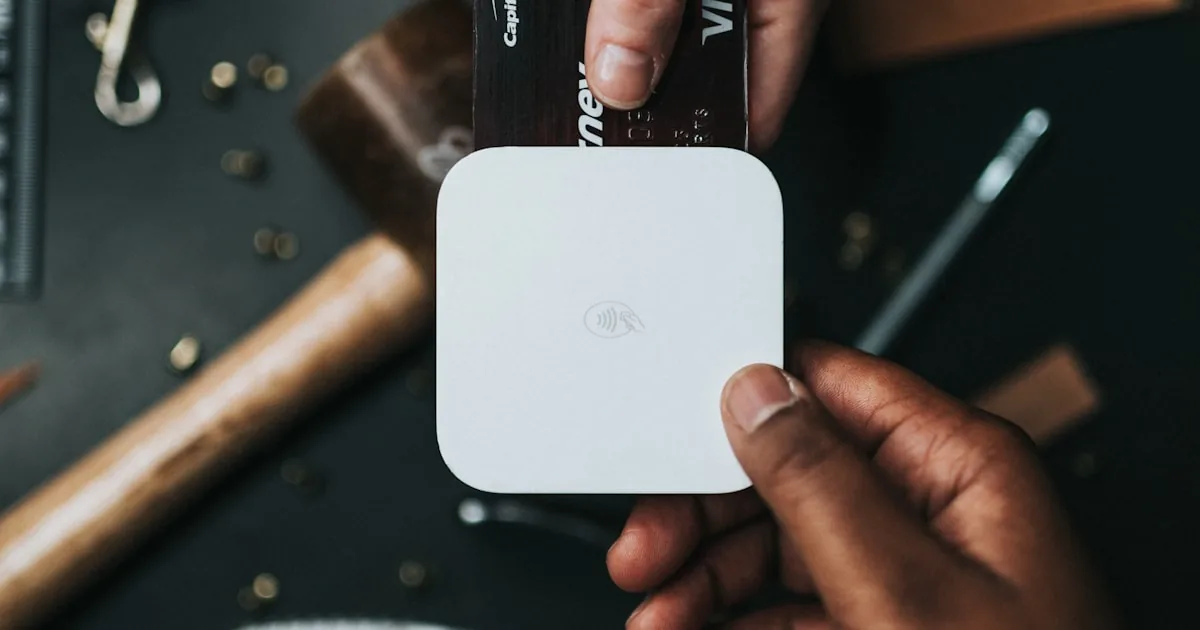
Shopify cannot complete an order until a payment method is connected. You do that in Settings → Payments, not by dropping a “checkout” block into the theme. Whether you see Shopify Payments, wallets, or only third-party providers depends on the store’s country and what Shopify offers there. Admin labels move; use Shopify Help Center: payments when a screen does not match this page. This is operational setup, not legal, tax, or banking advice.
Quick answer
Open Settings → Payments. If Shopify Payments is offered for your country, complete business identity and payout details, keep test mode on while you finish checkout and shipping, then switch to live when you intend to charge real cards. If Shopify Payments is not listed, choose a supported third-party provider and budget Shopify’s extra transaction fee on top of that provider’s rate. Enable Shop Pay, Apple Pay, and Google Pay only where Shopify and your processor allow them—these are payment settings, not theme apps. Place a test order before you remove the store password.
What you need first
Payments inherit legal name, address, and currency from store settings. Empty or invented details fail identity review.
You also need:
- A created store on a plan you will actually keep
- A bank account or the local payout method Shopify lists for your country, if you use Shopify Payments
- At least one product and a shipping (or pickup) rate so checkout can finish a test
Do not start with a random “payment app” unless Shopify’s current docs say that app is the supported way to add a specific method. Most stores should stay on the provider list inside Payments.
Step-by-step: Shopify Payments (when offered)
Shopify Payments is Shopify’s own processor. It is country-specific. When it appears on the Payments page, it is usually the simplest path: payouts in admin and no extra Shopify third-party transaction fee on those Shopify Payments charges.
- Open Settings → Payments.
- Activate Shopify Payments / complete account setup (wording changes).
- Enter the legal business type Shopify asks for. Match government records. Store nicknames delay review.
- Submit the identity documents Shopify requests in admin. Follow that list; do not send scans to unofficial addresses.
- Add payout details. Timing is not the same in every country—use Shopify’s help article for your region.
- Confirm the statement descriptor so bank statements match the business shoppers recognize.
- Turn test mode on while you configure shipping and checkout. Test mode uses Shopify’s documented test cards, not your personal card.
- When identity is approved and you are ready to sell, turn test mode off. A live-looking store left in test mode cannot take real money.
If Shopify Payments is not listed, that is availability, not a missing button. Use a supported third-party provider. Background: Shopify payment gateways explained.
Third-party providers
Connect supported providers from Payments. Do not paste API keys into theme files.
When you use a third-party gateway instead of Shopify Payments, Shopify charges an extra transaction fee on those orders. Cited US list from shopify.com/pricing on 29 August 2026: 2% (Basic), 1% (Grow), 0.6% (Advanced), 0.2% (Plus). That is on top of the provider’s own rate. Invoices differ by country. Promotions are not list price. Compare the full picture on Shopify pricing and plans before you assume a “cheaper” gateway saves money.
Pick a provider that is supported for your country, settles in a currency you can use, and that you can reconcile. Do not pick one because a forum called it best.
Wallets: Shop Pay, Apple Pay, Google Pay
These show at checkout when your processor and the shopper’s device allow them. You enable them in Payments. You do not install an “Apple Pay theme app.”
If a wallet is missing, check country, processor eligibility, test vs live, and whether you are previewing a theme that still uses Shopify Checkout. Fix eligibility. Do not add a fake button.
Test vs live, then a real test order
Test mode is for setup. Live mode is for customers. Mixing them is a common launch failure: real cards fail, or testers get charged.
Before launch:
- Keep password protection on.
- Follow Shopify’s current test procedure (test-mode cards, a development store’s Bogus gateway if your store type allows it, or a small live charge you refund using Shopify’s documented refund flow).
- Confirm the order appears, capture/authorization matches what you set, and the payout or provider dashboard agrees.
- Then walk the store launch checklist.
Checkout branding comes after a working charge. Conversion work is later; see optimize Shopify checkout only after payments and shipping work.
Common mistakes
- Skipping identity and wondering why payouts are held.
- Leaving test mode on after “launch.”
- Installing wallet apps instead of enabling wallets in Payments.
- Choosing a third-party gateway without adding the extra Shopify fee into the plan comparison.
- Testing with a product that has no shipping rate, then blaming payments.
- Treating a promotional processing offer as the US list rate (Shopify Payments online standard on that 29 August 2026 table: Basic 2.9% + 30¢, Grow 2.7% + 30¢, Advanced 2.5% + 30¢).
What to do next
Set shipping rates and shipping zones so checkout can quote a method, then finish checkout settings. This page is part of Shopify 101; the complete Shopify 101 guide shows cluster order.
Payment setup is a merchant task. If you later need theme work around a working checkout, AalphaLeo Digital Solutions (+91 9288621081) can help. Complete identity, payout, and one test order yourself first.
Frequently asked questions
Why don’t I see Shopify Payments?
It is offered only in certain countries and for certain business types. If it is missing, use a supported third-party provider. Recheck after store country is correct in settings—do not change country casually; that has billing and tax consequences you must confirm with Shopify and your accountant.
Can I use two processors at once?
Payments can list Shopify Payments plus additional methods (wallets, local methods, a third-party). What can run together is defined by Shopify for your region. Do not assume every combination is allowed.
Should I stay in test mode until I have customers?
Stay in test mode until identity is approved and you are ready to charge. Then switch to live and place one controlled test. A password-off store still in test mode cannot sell.
Is this tax or legal advice?
No. Identity, payouts, chargebacks, and tax on sales are yours and your advisor’s. Shopify Help Center and your provider’s terms are the operational sources.

AalphaLeo Digital Solutions
Publisher of FACTASH. Practical technology, AI, and search operations writing. No invented credentials.
Publisher pageRelated articles

What Is Shopify? A Plain-Language Explanation for New Store Owners
Shopify is a hosted commerce platform for selling online, in person, and on connected channels from one admin. What it includes, what you st…

What Are Shopify Product Tags and How Should You Use Them?
Shopify product tags are admin merchandising labels for collections, search, and apps—not a ranking shortcut. Naming conventions, what to ta…
What Are Shopify Apps and How Do They Work?
Shopify apps connect to your store via permissions, App Store install, theme embeds, and fees. Native tools vs third-party, scopes, and what…